

meshviz-admin
Troubleshooting Company Portal Installation Issues in Intune
Troubleshooting Company Portal Installation Issues in Intune – written by Nathan Hodgson
If you’re having trouble installing the Company Portal via Intune, don’t worry, the team at Workspace IT have put together some tips and tricks when troubleshooting Company Portal and other Intune deployed applications. Here are some steps you can follow to get things working again:
1. Check Primary User Assignment
First, make sure the device has a primary user assigned in Intune. This is important because Intune uses this information to apply the right policies and apps.
2. Verify Device Sync
Next, check if the device can sync with Intune. Here’s how:
Go to Start > Access work or school.
Click on Connected to….
Click Info.
Scroll down and click Sync.
3. Run System File Checker and DISM Commands
Sometimes, system files can get corrupted and cause issues. Run these commands in an admin command prompt to fix them:
sfc /scannow
Dism /online /cleanup-image /checkhealth
Dism /online /cleanup-image /scanhealth
Dism /online /cleanup-image /restorehealth
4. Reset Windows Update Components
Issues with Windows Update can also prevent installations. Resetting these components can help. Run these commands in an admin command prompt:
net stop wuauserv
net stop cryptSvc
net stop bits
net stop msiserver
ren C:WindowsSoftwareDistribution SoftwareDistribution.old
ren C:WindowsSystem32catroot2 catroot2.old
net start wuauserv
net start cryptSvc
net start bits
net start msiserver
Then, restart your machine.
5. Repair Windows Store
The Company Portal is distributed through the Microsoft Store, so if there are issues with the Store, repairing it can help. Run this PowerShell command:
Get-AppXPackage | Foreach {Add-AppxPackage -DisableDevelopmentMode -Register “$($_.InstallLocation)AppXManifest.xml”}
6. Manually Delete Registry Keys
Sometimes, leftover registry keys can cause problems. Deleting these keys can force Intune to reinstall the app. Check out the steps in this Deployment Research article.
This post by Johan Arwidmark shows how to do it:
Force Application Reinstall in Microsoft Intune (Win32 Apps) – Deployment Research
7. Leave and Rejoin Azure AD
If all else fails, leaving and rejoining Azure AD can reset the device’s connection to Intune. Run this command in an admin command prompt:
dsregcmd /leave
Reboot your machine, then run this PowerShell command:
Start-ScheduledTask “MicrosoftWindowsWorkplace JoinAutomatic-Device-Join”
Common Error Codes
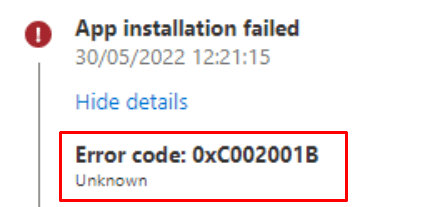
0xC002001B: There’s a problem with the device’s connection to Intune.
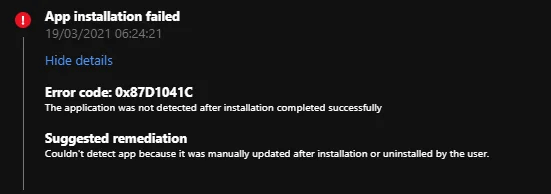
0x87D1041C: The application installation timed out.
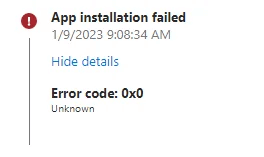
0x0: The operation completed successfully…. or did it?!
If you’re still struggling with Company Portal Installation Issues or any other application and would like a chat with one of our experts, get in touch and we will be more than happy to help.